

Adding the macro to a page
1
Open the macro browser
While editing a page, type
/ or click the + in the editing toolbar.2
Find and select the macro
Search for “Stoplight Elements” and select Stoplight Elements or Stoplight Elements Dev Portal: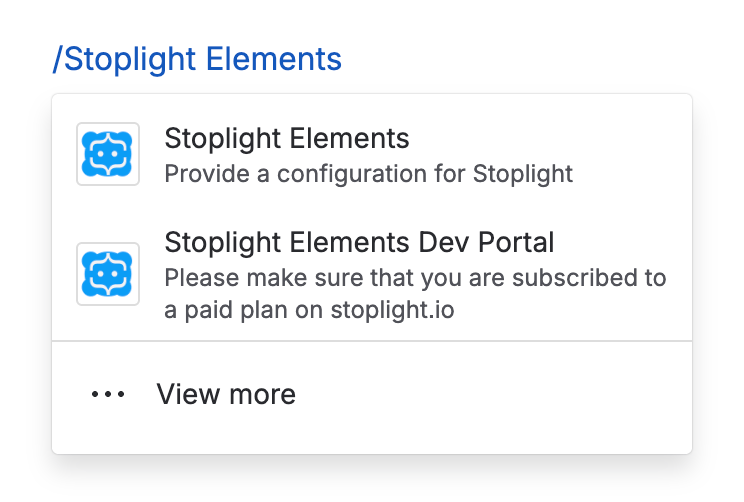
3
Set up the macro
Fill in the config form — see Configuration for every field.
4
Save
Click Save on the macro, then save the page to make the rendered documentation visible to viewers. Here’s how the Elements macro looks once published: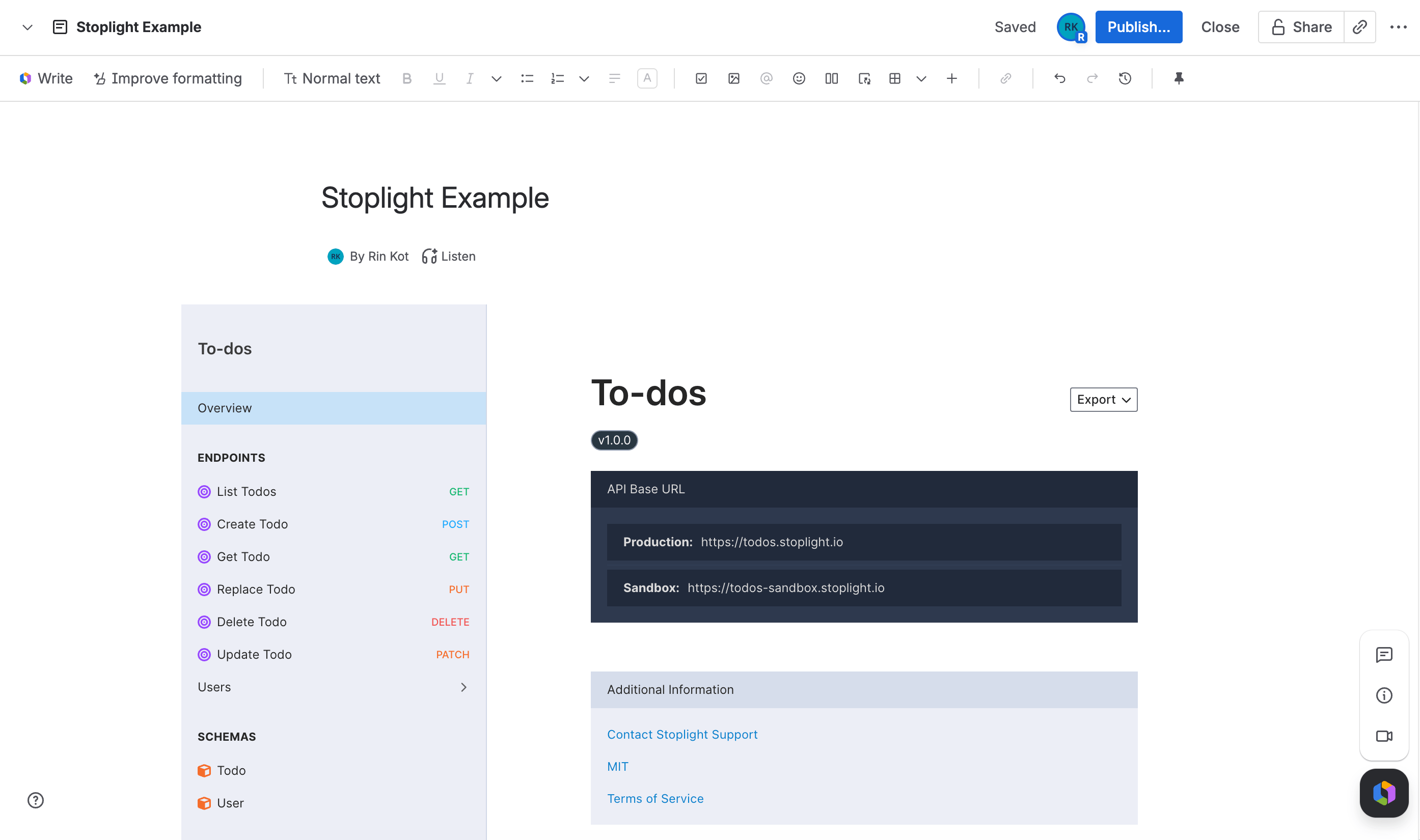
Keeping it updated
How the macro stays current depends on what you pointed it at:- API Description URL (Elements macro) or Project ID (Dev Portal macro) — fetched live every time someone views the page, so changes to the underlying spec or Stoplight project show up automatically. There’s nothing to republish.
- API Description Document (pasted YAML/JSON, Elements macro only) — stored as a static snapshot in the macro’s configuration. It only changes when you reopen the macro and paste in the updated content.
Licensing
The app uses Confluence’s built-in Marketplace licensing. If a site doesn’t have an active license or trial, every instance of either macro shows a license warning instead of rendering.Tips
Spec isn't publicly reachable
Spec isn't publicly reachable
Use Document instead of URL on the Elements macro and paste the OpenAPI YAML or JSON directly into the config.
Macro feels cramped
Macro feels cramped
Confluence pages default to a fixed width. Use the page options menu to switch the page to Go wide or Go full width instead of changing the macro’s own settings.
Read-only audience
Read-only audience
Turn on Hide Try It in Filter to remove the interactive console and present a reference-only view.