

Choosing a macro
There are two macros to choose between:- Apiary Embed (raw code) — paste the exact embed script Apiary generates for you (
var embed = new Apiary.Embed({...});). Use this when you need options that aren’t exposed by the generate form, or you’re reusing a script you already have. - Apiary Embed (generate code) — provide the API Project subdomain and toggle display options in a form, without writing any code. Use this for the common case.
Adding the macro to a page
1
Open the macro browser
While editing a page, type
/ or click the + in the editing toolbar.2
Find and select a macro
Search for “Apiary” and select Apiary Embed (raw code) or Apiary Embed (generate code):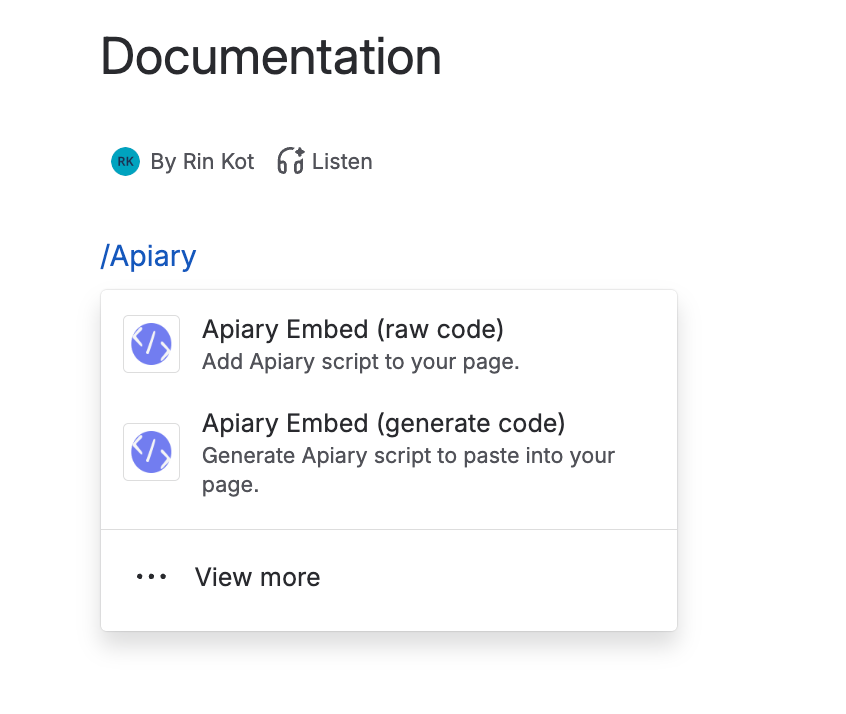
3
Set up the macro
Fill in the config form — see Configuration for every field.
4
Save
Click Save on the macro, then save the page to make the rendered documentation visible to viewers. Here’s how the macro looks once published: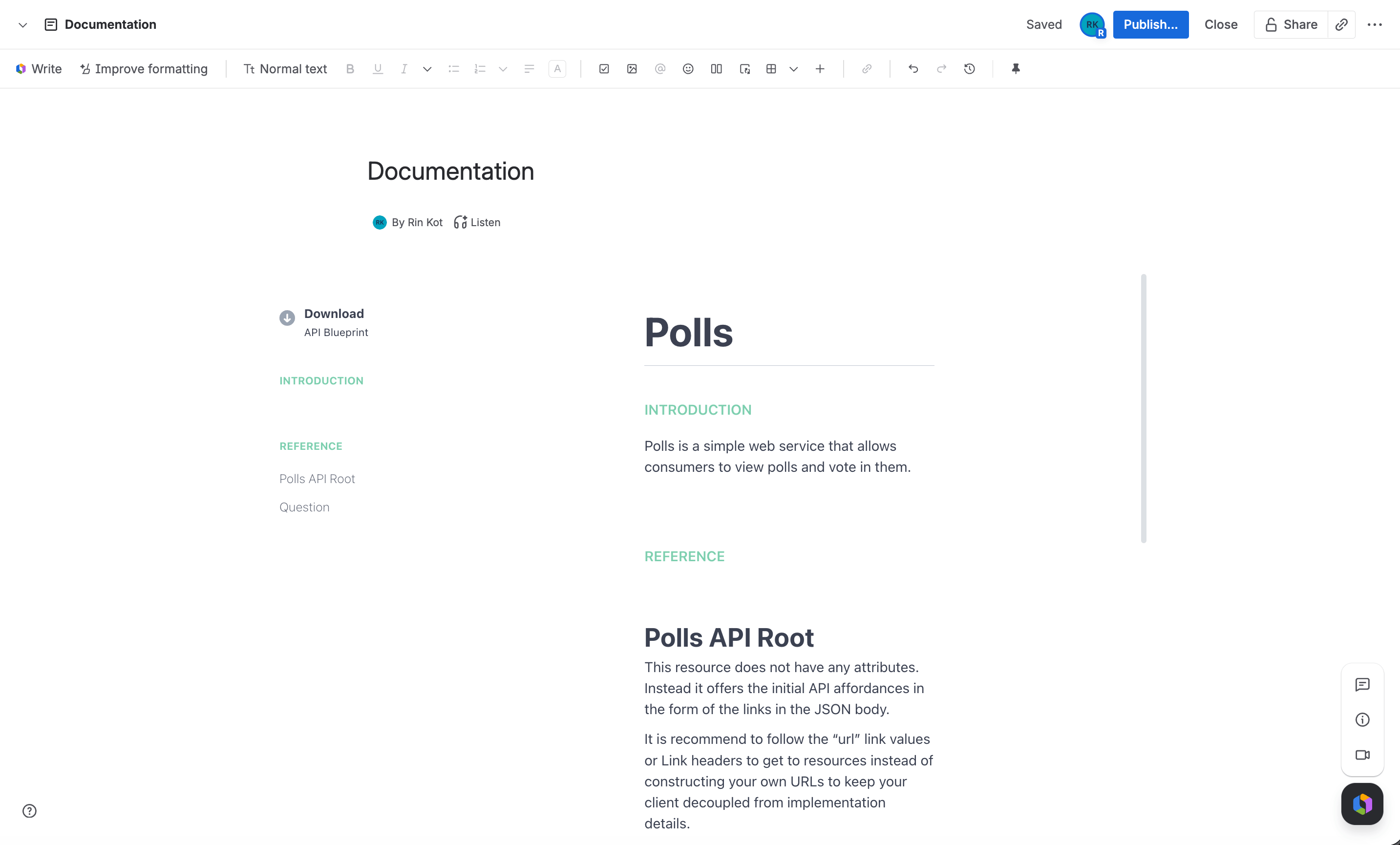
Keeping it updated
Both macros render the Apiary API Project live, in an iframe served by Apiary, every time someone views the page. There’s nothing to republish — if you update the API Project in Apiary, the change shows up the next time the page loads.Licensing
The app uses Confluence’s built-in Marketplace licensing. If a site doesn’t have an active license or trial, every instance of either macro shows a license warning instead of rendering.Tips
Need an option the generate form doesn't expose
Need an option the generate form doesn't expose
Use Apiary Embed (raw code) instead, and paste the exact embed script from Apiary’s own embed generator.
Macro feels cramped
Macro feels cramped
Confluence pages default to a fixed width. Use the page options menu to switch the page to Go wide or Go full width instead of changing the macro’s own settings.
Embedded content is cut off
Embedded content is cut off
Increase the Height field on the macro — it sets a fixed iframe height, so content taller than that value is clipped rather than scrolled.