

Categories
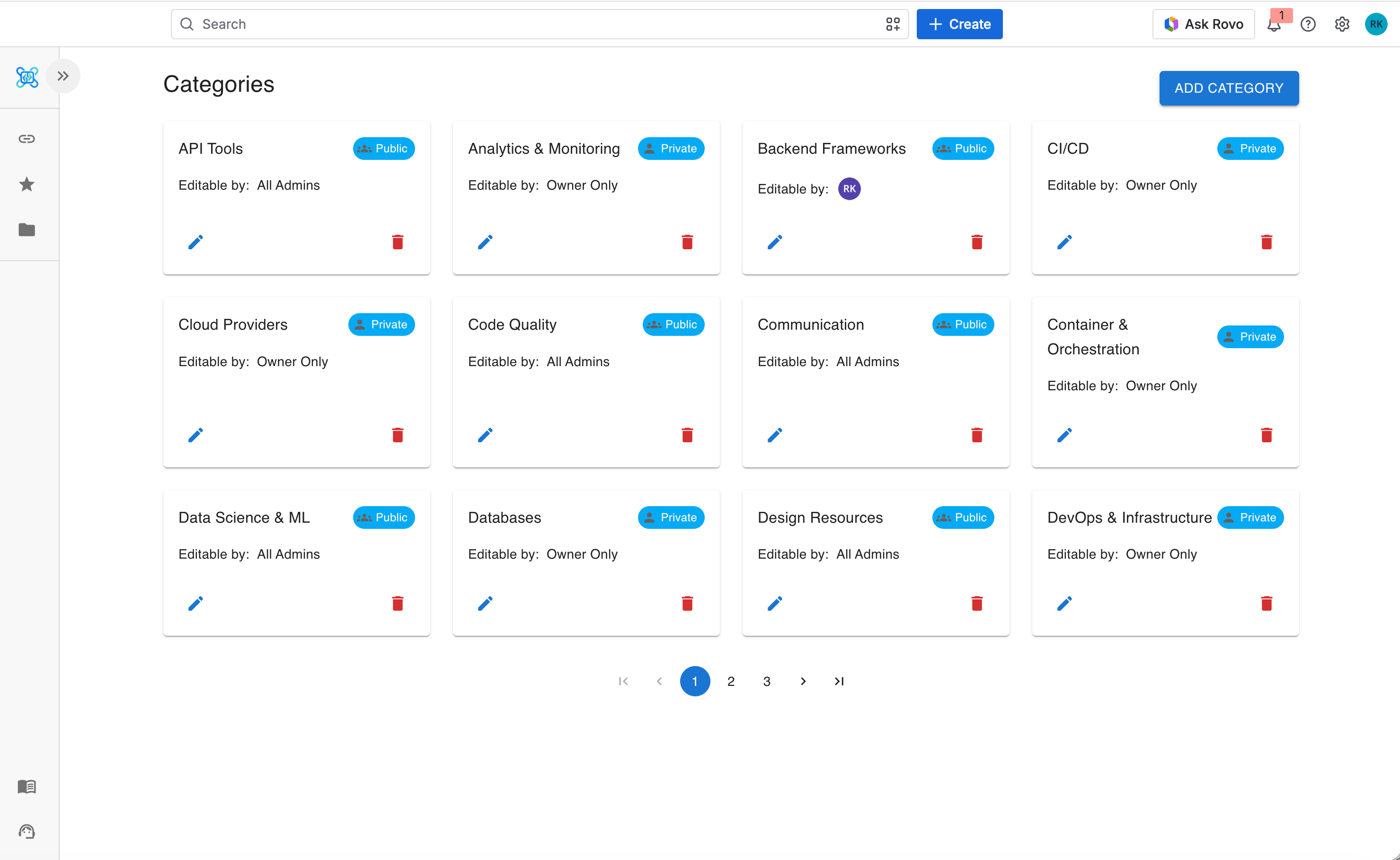
Categories are containers for links. Each one has its own visibility setting and controls who can edit the links inside it. Every link has to belong to a category, so create at least one before saving links.Category cards
Each card on the Categories page shows:- Category name
- A Public or Private visibility badge
- An Editable By badge for public categories
- Avatars of any specifically permitted users
- Edit and Delete buttons, if you have permission
Adding a category
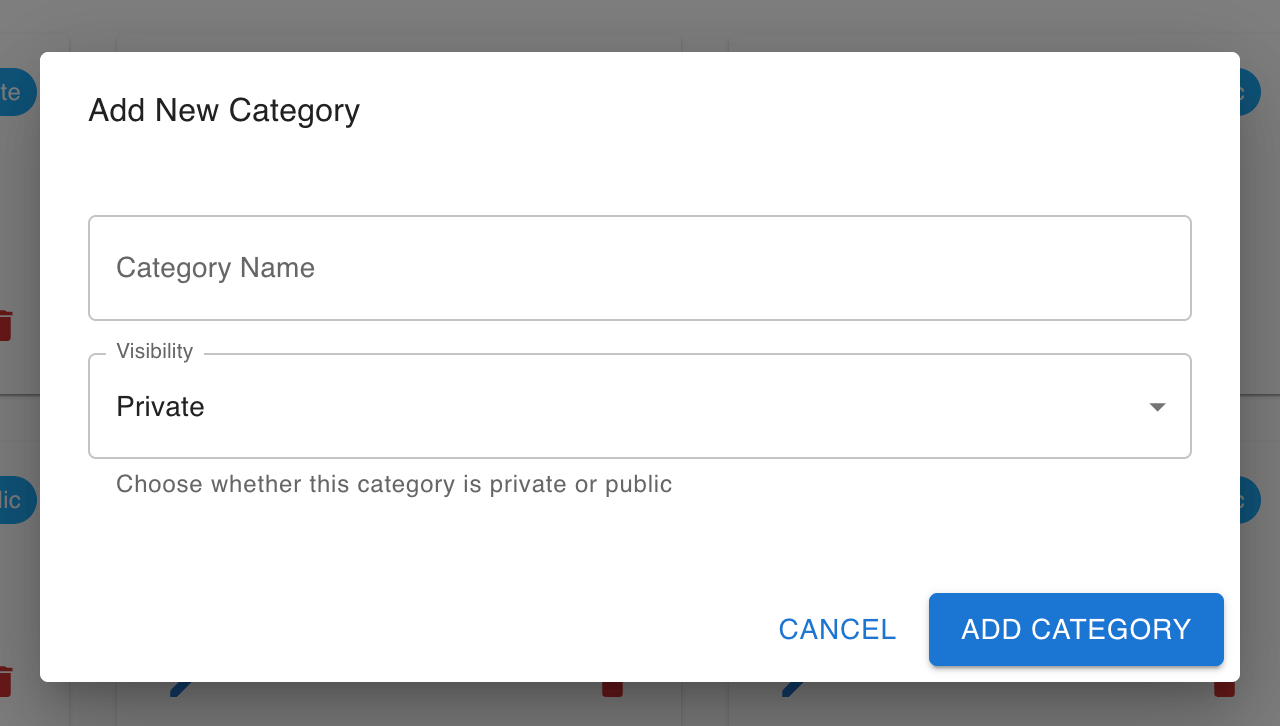
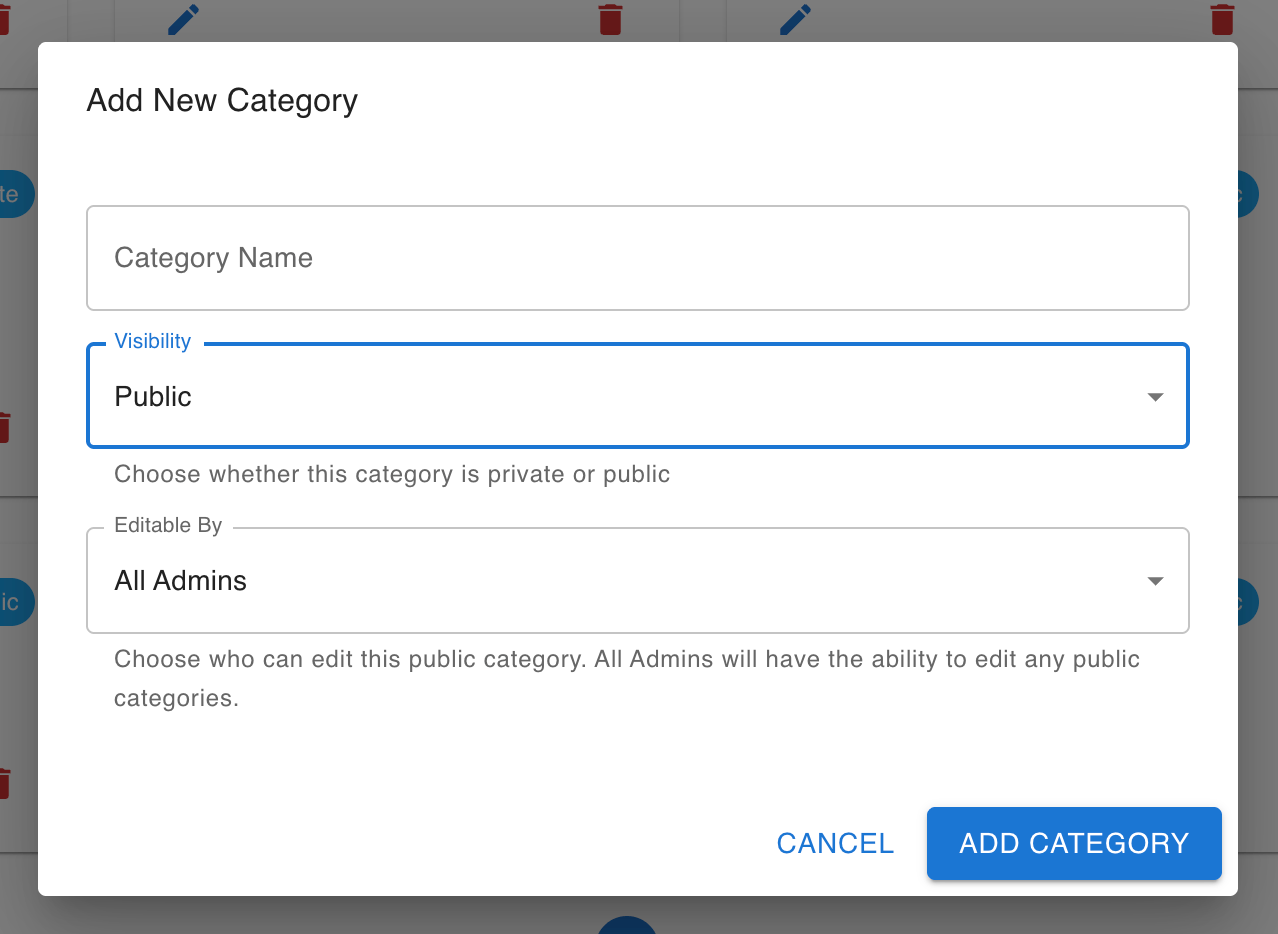
Click Add Category and fill in the form:
With Visibility set to Private, the form has no Editable By field:
If you close the form after entering data, Pocket Links asks you to confirm before discarding it.
Editing a category
Click Edit on a category card to update its name, visibility, or edit permissions. Switching a category from Public to Private removes any specifically permitted users — only the owner and admins keep access afterward.Deleting a category
Click Delete on a category card and confirm. This permanently deletes the category and every link inside it.Company Links
Browsing links
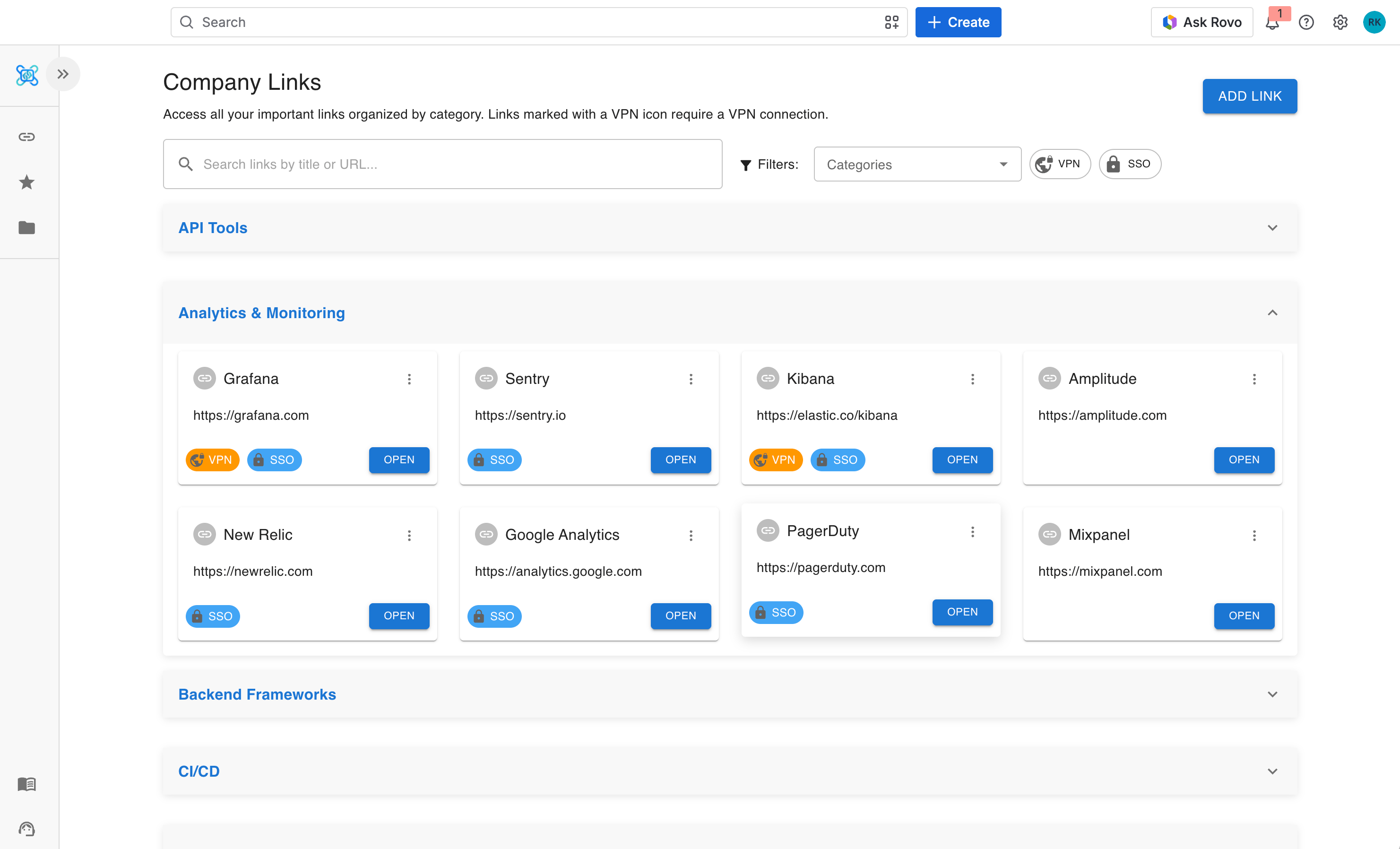
Links are grouped by category. Categories, and the links inside them, are listed alphabetically. Each link card shows:- Link name and favicon
- A VPN badge, if the link requires a VPN connection
- An SSO badge, if the link requires single sign-on
- A star icon if the link is in your favorites
Saving a link
Click Add Link in the top-right corner and fill in the form:
The favicon is fetched automatically from the URL’s domain.
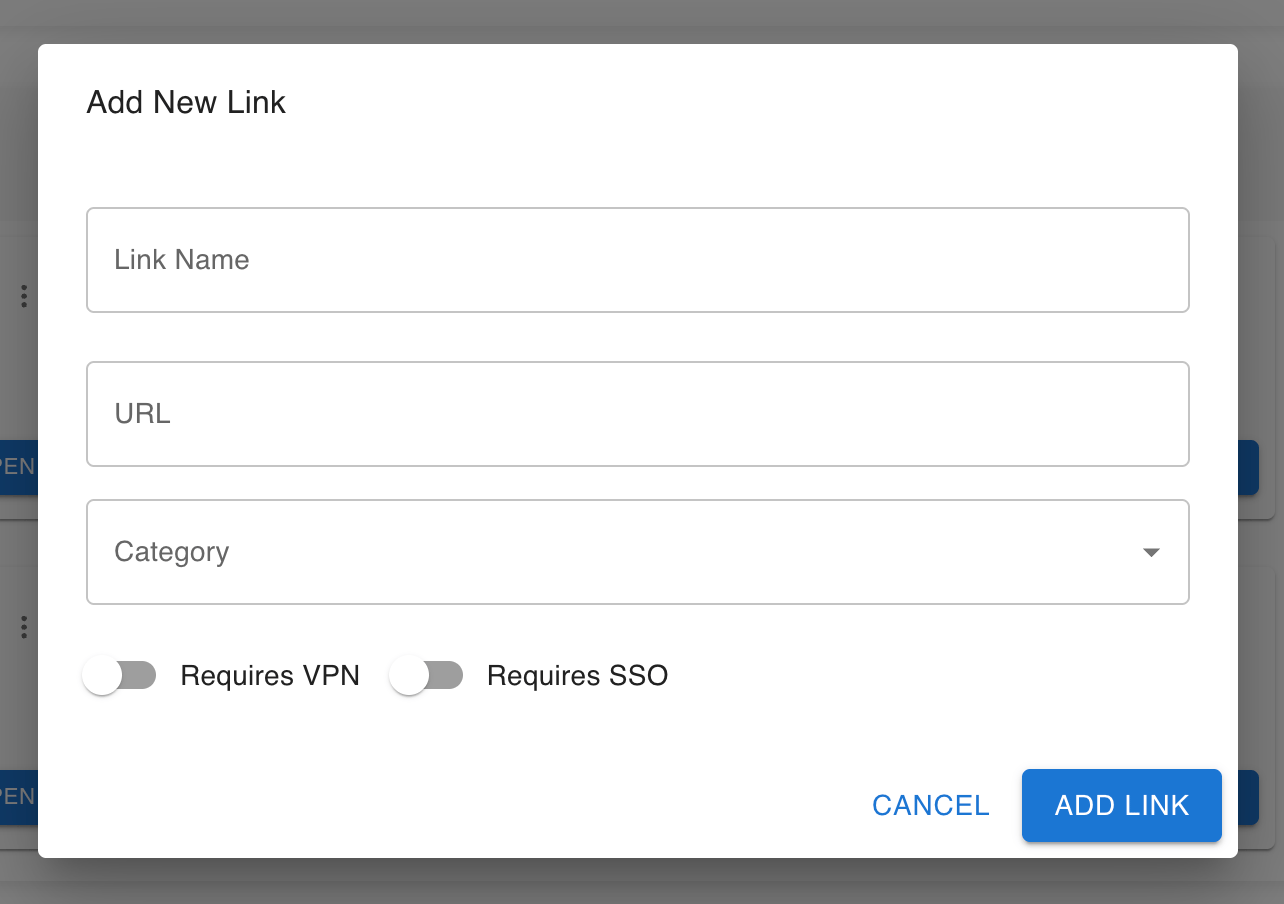
If you close the form after entering data, Pocket Links asks you to confirm before discarding it.
Editing and deleting a link
Open the ⋮ menu on a link card. Edit and Delete only appear if you have edit permissions for that link’s category — see Permissions. Deleting a link asks for confirmation first.Searching and filtering
Use the controls at the top of the page to narrow the list:- Search box — matches link names and URLs, with a short delay while you type
- Category filter — multi-select autocomplete across categories
- VPN filter — show only links that require VPN
- SSO filter — show only links that require SSO
- Clear filters — resets every active filter
Starring a link
Open a link’s ⋮ menu and choose Add to Favorites or Remove from Favorites. Favorites are personal — other users can’t see what you’ve starred.Favorite Links
This page lists every link you’ve starred, grouped alphabetically by category. It supports the same Search, Category, VPN, and SSO filters as Company Links. To remove a link from your favorites, open its ⋮ menu and choose Remove from Favorites.Permissions
Visibility
Edit permissions
The owner and Jira admins can always edit or delete a category and its links, regardless of any other setting. For public categories, Editable By controls whether anyone else also gets edit access:
Private categories don’t have an Editable By option — only the owner and admins can edit or view them.
What each role can do
URL validation rules
When adding or editing a link, the URL must:- Start with
http://orhttps:// - Contain a valid hostname (
http:///something, with no host, is rejected) - Not contain credentials (
http://user:pass@hostis rejected) - Not contain spaces in the host part
Tips
Quickly focus on one team's links
Quickly focus on one team's links
Use the Category filter on the Company Links page to narrow the list to a single team’s links.
Find links that need both VPN and SSO
Find links that need both VPN and SSO
Turn on the VPN and SSO filters at the same time to find links that require both.
Use Favorite Links as your shortcut list
Use Favorite Links as your shortcut list
Star anything you visit regularly — your Favorite Links page is the fastest way back to it.
Delegate a category to its team
Delegate a category to its team
When creating a public category for a specific team, set Editable By: Specific Users and add only the people who should manage its links.