

apidog.com domain, they see an invalid URL warning. If the site doesn’t have an active license, they see a license warning instead — see Licensing.
Adding the macro to a page
1
Open the macro browser
While editing a page, type
/ or click the + in the editing toolbar.2
Find and select the macro
Search for “Apidog” and select API Docs Embed for Apidog: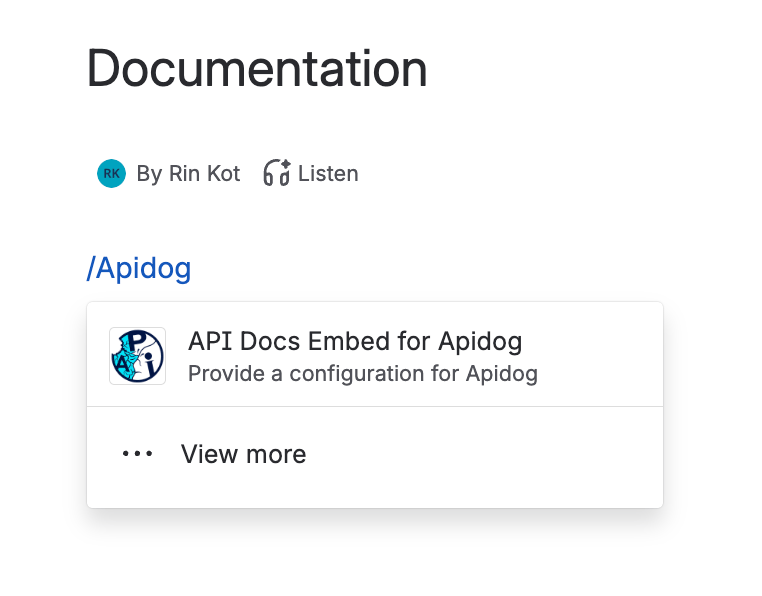
3
Set up the macro
Fill in the URL Resource and Height fields — see Configuration for details.
4
Save
Click Save on the macro, then save the page to make the embedded documentation visible to viewers. Here’s how the macro looks once published: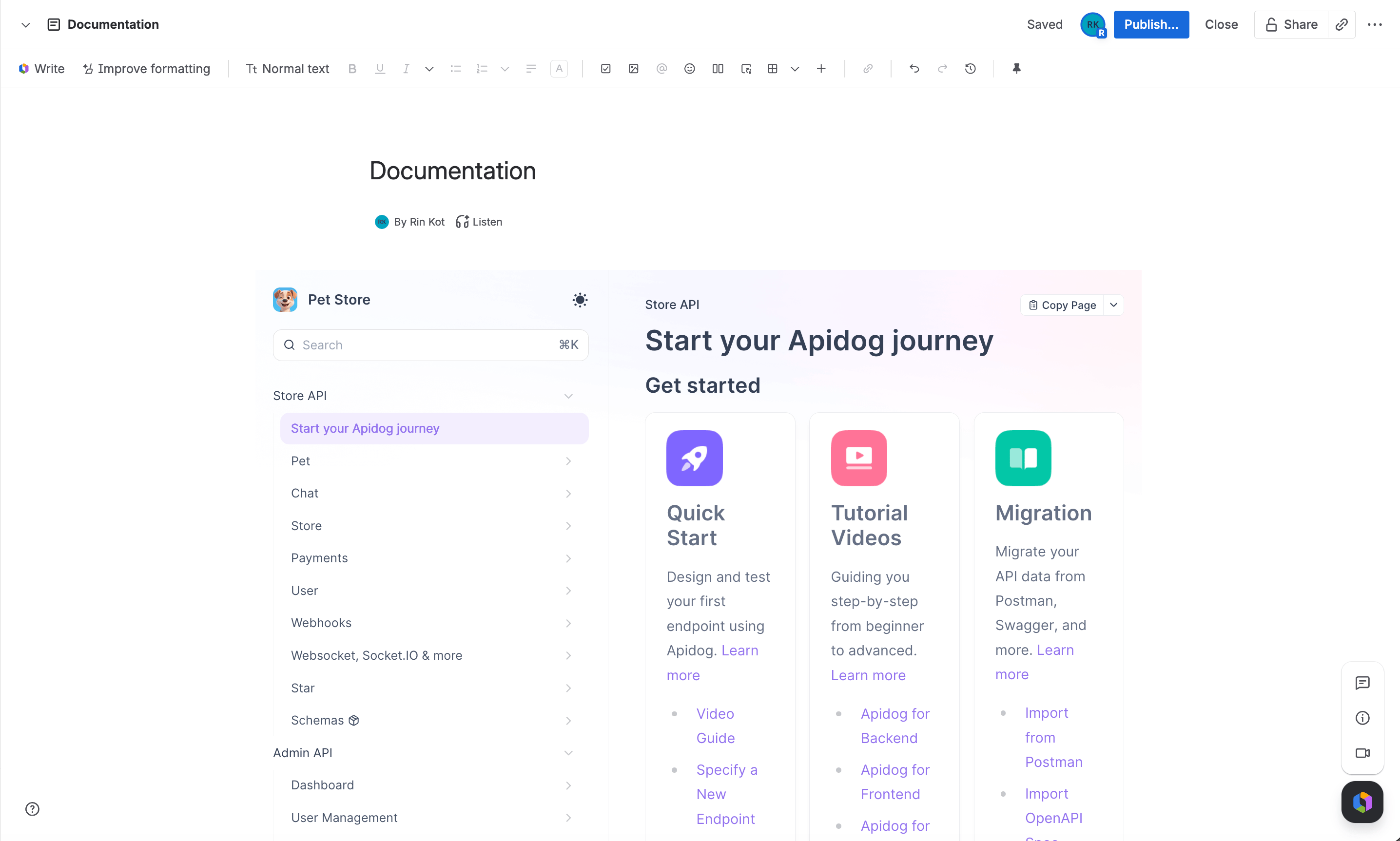
Keeping it updated
The macro embeds the configured URL live, so any changes you publish in Apidog show up the next time someone views the Confluence page. There’s nothing to republish on the Confluence side — only the URL Resource or Height fields need to be revisited if you reconfigure the macro itself.Licensing
The app uses Confluence’s built-in Marketplace licensing. If a site doesn’t have an active license or trial, every instance of the macro shows a license warning instead of rendering.Tips
Content isn't visible inside the macro
Content isn't visible inside the macro
Confirm the URL Resource points to a published, publicly accessible Apidog documentation page — pages that require Apidog sign-in won’t render inside the iframe.
Macro shows an "Invalid URL Resource" warning
Macro shows an "Invalid URL Resource" warning
The URL must be on the
apidog.com domain or a subdomain of it. URLs on any other domain are rejected.Embedded content is cut off or has extra empty space below it
Embedded content is cut off or has extra empty space below it
The macro doesn’t auto-resize to its content. Adjust the Height field in the macro configuration to match the embedded page.