> ## Documentation Index
> Fetch the complete documentation index at: https://docs.logictwelve.com/llms.txt
> Use this file to discover all available pages before exploring further.
# Usage
> Use Better Swagger UI for Confluence day to day
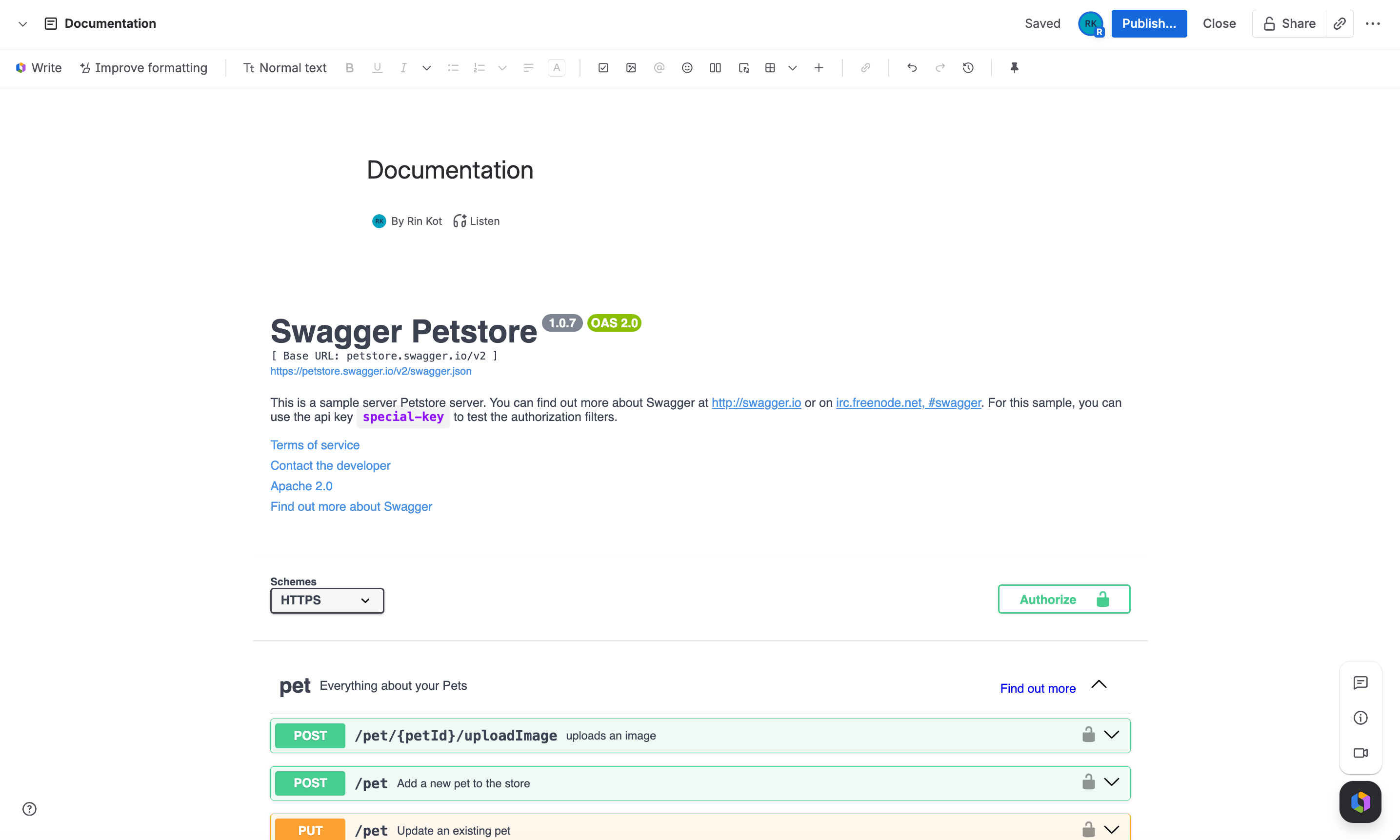
Page viewers see an interactive Swagger UI panel — endpoint list, schemas, and a **Try it out** console — rendered in place, with no Confluence-specific chrome around it.
If the macro doesn't have a usable OpenAPI document configured, viewers see a configuration warning instead. If the site doesn't have an active license, they see a license warning instead — see [Licensing](#licensing).
## Adding the macro to a page
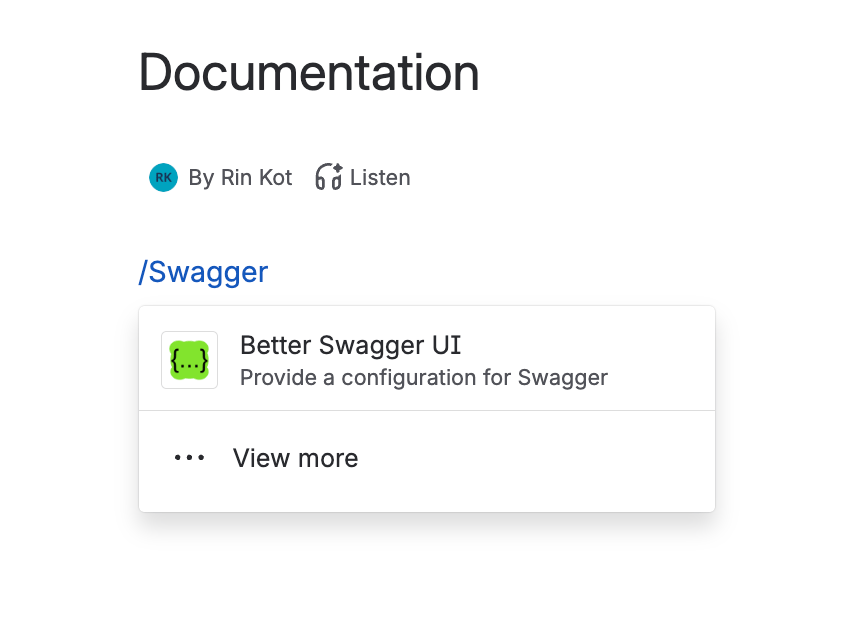
While editing a page, type `/` or click the **+** in the editing toolbar.
Search for "Swagger" and select **Better Swagger UI**:
 Fill in the config form — see [Configuration](/swagger-ui-confluence/configuration) for every field.
Click **Save** on the macro, then save the page to make the rendered documentation visible to viewers. Here's how the macro looks once published:
Fill in the config form — see [Configuration](/swagger-ui-confluence/configuration) for every field.
Click **Save** on the macro, then save the page to make the rendered documentation visible to viewers. Here's how the macro looks once published:
 ## Keeping it updated
How the macro stays current depends on what you pointed it at:
* **URL** — fetched live every time someone views the page, so changes to the underlying spec show up automatically. There's nothing to republish.
* **Content** (pasted JSON/YAML) — stored as a static snapshot in the macro's configuration. It only changes when you reopen the macro and paste in the updated content.
## Licensing
The app uses Confluence's built-in Marketplace licensing. If a site doesn't have an active license or trial, every instance of the macro shows a license warning instead of rendering.
## Tips
Use **Content** instead of **URL** and paste the OpenAPI or Swagger document directly into the config.
Confluence pages default to a fixed width. Use the page options menu to switch the page to **Go wide** or **Go full width** instead of changing the macro's own settings.
Deselect all options in **Supported Submit Methods** to disable **Try it out** for every operation and present a reference-only view.
Set **Authorization** to **Basic** or **Api Key** so Swagger UI pre-fills credentials for **Try it out** requests instead of asking each viewer to authorize manually.
## Keeping it updated
How the macro stays current depends on what you pointed it at:
* **URL** — fetched live every time someone views the page, so changes to the underlying spec show up automatically. There's nothing to republish.
* **Content** (pasted JSON/YAML) — stored as a static snapshot in the macro's configuration. It only changes when you reopen the macro and paste in the updated content.
## Licensing
The app uses Confluence's built-in Marketplace licensing. If a site doesn't have an active license or trial, every instance of the macro shows a license warning instead of rendering.
## Tips
Use **Content** instead of **URL** and paste the OpenAPI or Swagger document directly into the config.
Confluence pages default to a fixed width. Use the page options menu to switch the page to **Go wide** or **Go full width** instead of changing the macro's own settings.
Deselect all options in **Supported Submit Methods** to disable **Try it out** for every operation and present a reference-only view.
Set **Authorization** to **Basic** or **Api Key** so Swagger UI pre-fills credentials for **Try it out** requests instead of asking each viewer to authorize manually.