> ## Documentation Index
> Fetch the complete documentation index at: https://docs.logictwelve.com/llms.txt
> Use this file to discover all available pages before exploring further.
# Usage
> Use API Docs Embed for Apidog day to day
Page viewers see the embedded Apidog documentation page rendered in place, with no Confluence-specific chrome around it.
If the macro doesn't have a usable URL configured, viewers see a configuration warning instead. If the URL isn't on the `apidog.com` domain, they see an invalid URL warning. If the site doesn't have an active license, they see a license warning instead — see [Licensing](#licensing).
## Adding the macro to a page
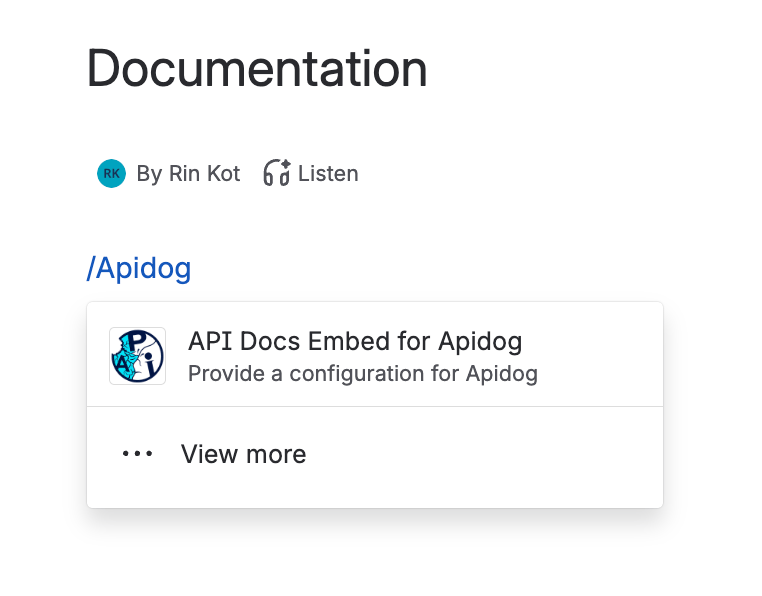
While editing a page, type `/` or click the **+** in the editing toolbar.
Search for "Apidog" and select **API Docs Embed for Apidog**:
 Fill in the **URL Resource** and **Height** fields — see [Configuration](/apidog-embed/configuration) for details.
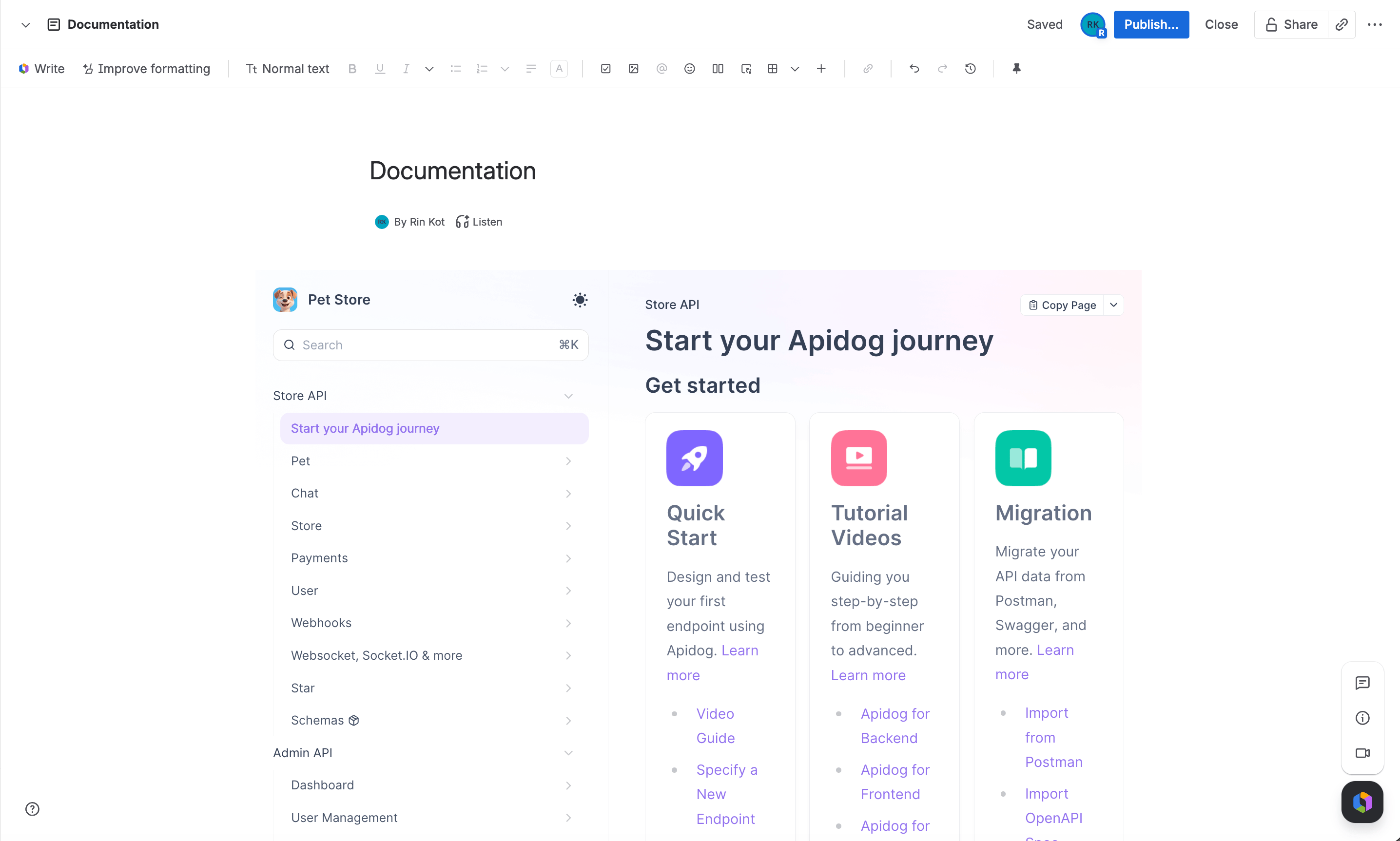
Click **Save** on the macro, then save the page to make the embedded documentation visible to viewers. Here's how the macro looks once published:
Fill in the **URL Resource** and **Height** fields — see [Configuration](/apidog-embed/configuration) for details.
Click **Save** on the macro, then save the page to make the embedded documentation visible to viewers. Here's how the macro looks once published:
 ## Keeping it updated
The macro embeds the configured URL live, so any changes you publish in Apidog show up the next time someone views the Confluence page. There's nothing to republish on the Confluence side — only the **URL Resource** or **Height** fields need to be revisited if you reconfigure the macro itself.
## Licensing
The app uses Confluence's built-in Marketplace licensing. If a site doesn't have an active license or trial, every instance of the macro shows a license warning instead of rendering.
## Tips
Confirm the **URL Resource** points to a published, publicly accessible Apidog documentation page — pages that require Apidog sign-in won't render inside the iframe.
The URL must be on the `apidog.com` domain or a subdomain of it. URLs on any other domain are rejected.
The macro doesn't auto-resize to its content. Adjust the **Height** field in the macro configuration to match the embedded page.
## Keeping it updated
The macro embeds the configured URL live, so any changes you publish in Apidog show up the next time someone views the Confluence page. There's nothing to republish on the Confluence side — only the **URL Resource** or **Height** fields need to be revisited if you reconfigure the macro itself.
## Licensing
The app uses Confluence's built-in Marketplace licensing. If a site doesn't have an active license or trial, every instance of the macro shows a license warning instead of rendering.
## Tips
Confirm the **URL Resource** points to a published, publicly accessible Apidog documentation page — pages that require Apidog sign-in won't render inside the iframe.
The URL must be on the `apidog.com` domain or a subdomain of it. URLs on any other domain are rejected.
The macro doesn't auto-resize to its content. Adjust the **Height** field in the macro configuration to match the embedded page.